


IPTV buffering or freezing? 8 fixes that actually work
Nine times out of ten it is the home network, not the service. Work through these eight checks in order.
Ten minutes, one stick, every channel. Plus the 2026 catch: which Fire TV models no longer allow sideloading.
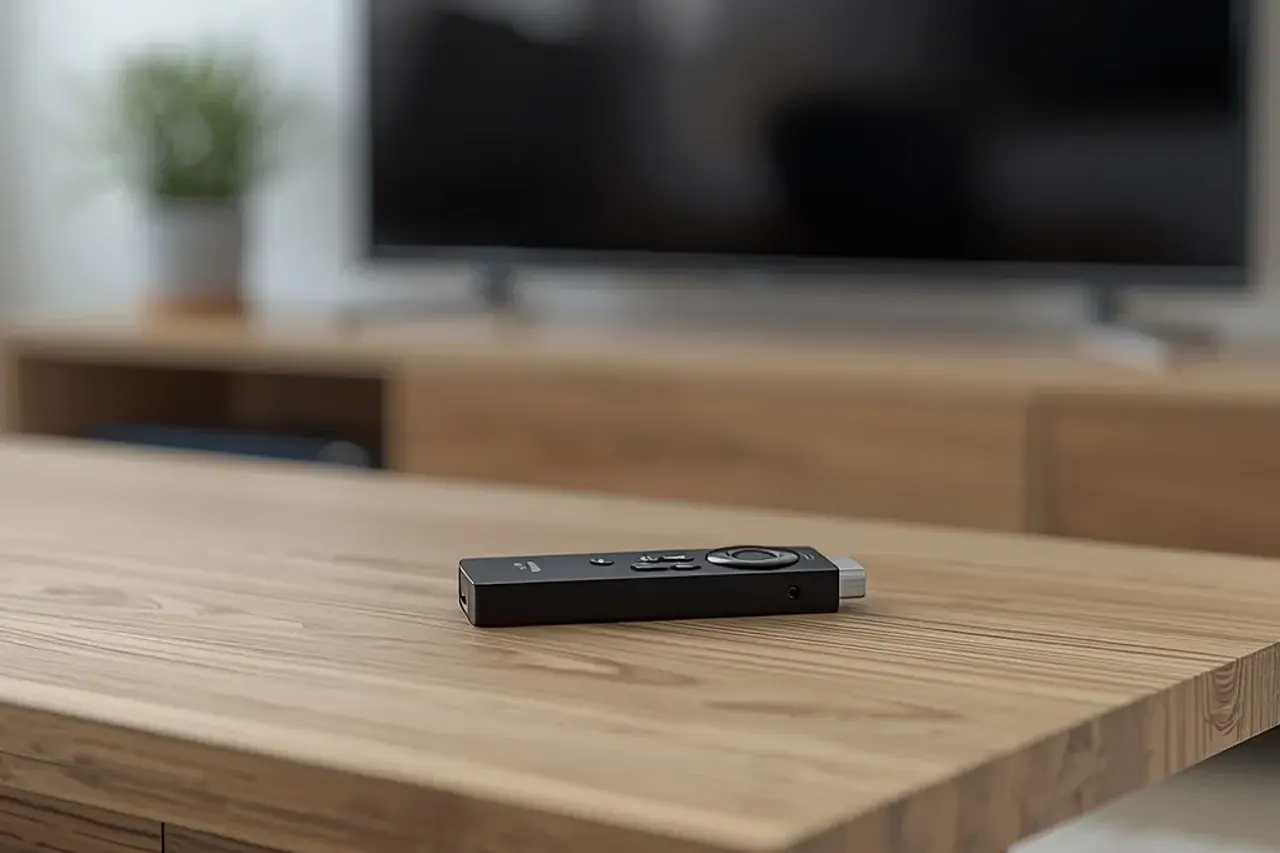
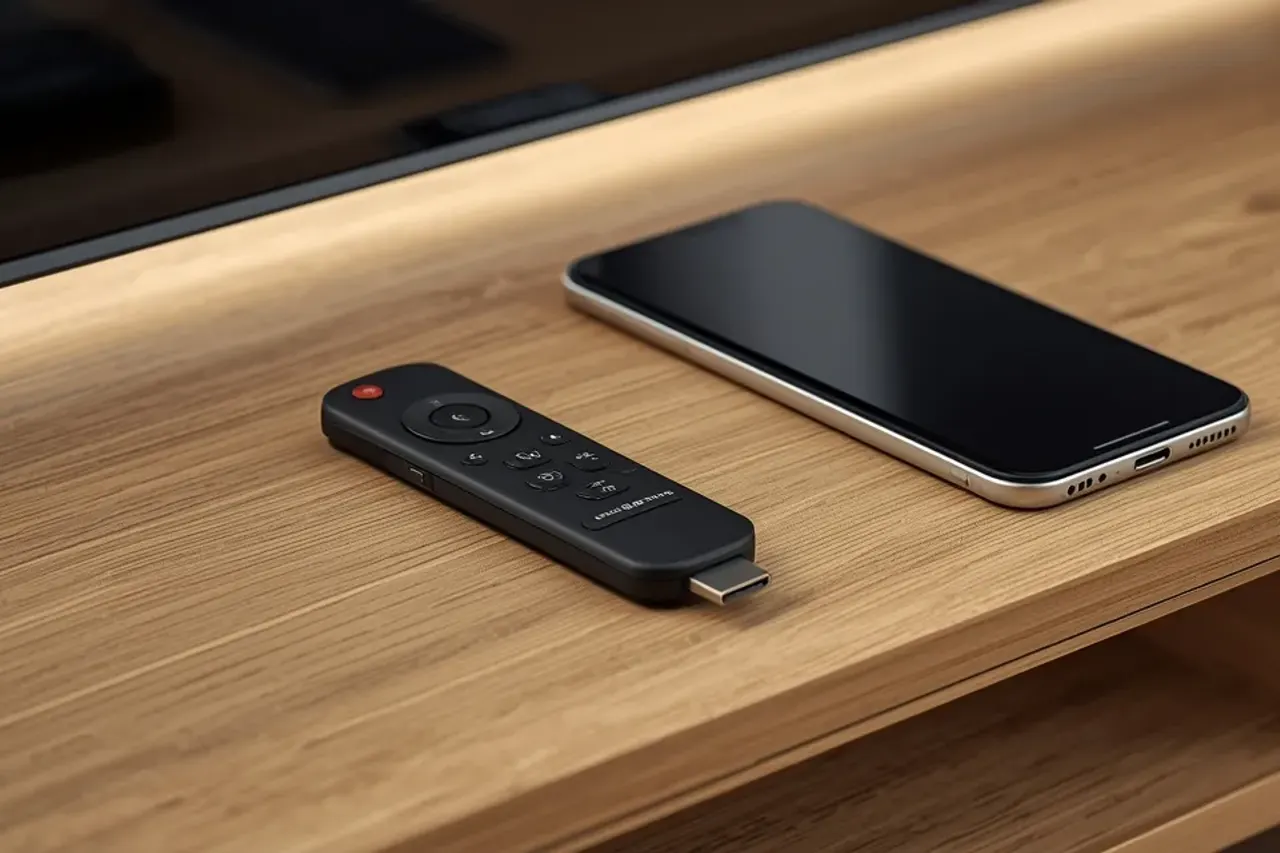
Installing Strong IPTV on an Amazon Fire TV Stick takes about ten minutes: you install a player app, enter the login we send you, and the channels load with the TV guide. Before you start, check one thing that changed in 2025-2026: which Fire TV model you have.
The Fire TV Stick 4K Max, the Fire TV Stick 4K and earlier models run Fire OS, which is based on Android and lets you install apps from outside the Amazon Appstore. The newer Fire TV Stick 4K Select and the 2026 Fire TV Stick HD run Amazon's new Vega OS, which blocks sideloading and only installs Appstore apps. On those models you can only use an IPTV player that is listed in the Appstore. If you are buying a stick for IPTV, the 4K Max is the safe choice.
Under Display & Sounds, set the video resolution to Auto and turn on match frame rate if your player supports it. Plug the stick into the power adapter, not the TV's USB port, which often cannot supply enough power. And if you can, add an Ethernet adapter: it removes most buffering problems in one go.
Smart TVs, Android boxes, Apple TV and phones are covered in our full setup guide. If you own an Android box from a hardware brand such as STRONG, the steps are the same as any Android TV device; our post on Strong IPTV vs STRONG receivers explains the difference between the two names.
Not subscribed yet? Install the player first, then ask for the free 24-hour trial to test it on your stick.
Nine times out of ten it is the home network, not the service. Work through these eight checks in order.
Same word, two different things: a streaming service and a hardware brand. Here is how to tell them apart.
Television over the internet, explained without jargon: how it works and what you need.
Test Strong IPTV free for 24 hours on your own TV.